
Troubleshooting
No accounts found
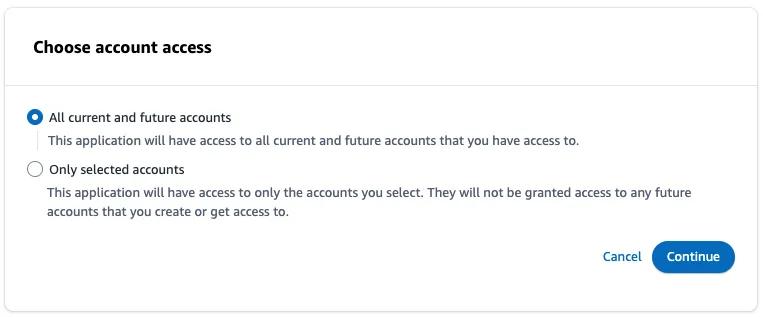
All current and future accounts. When you go to Advigator > Add new account, you will be redirected to the Amazon page to allow our application to access your Amazon Ads account. Please select ‘all current and future accounts’.
1. Check your permissions in Amazon Ads console
Make sure you have access to the Amazon Ads console to create and edit ad campaigns. You must have at least one Sponsored Products campaign already created.
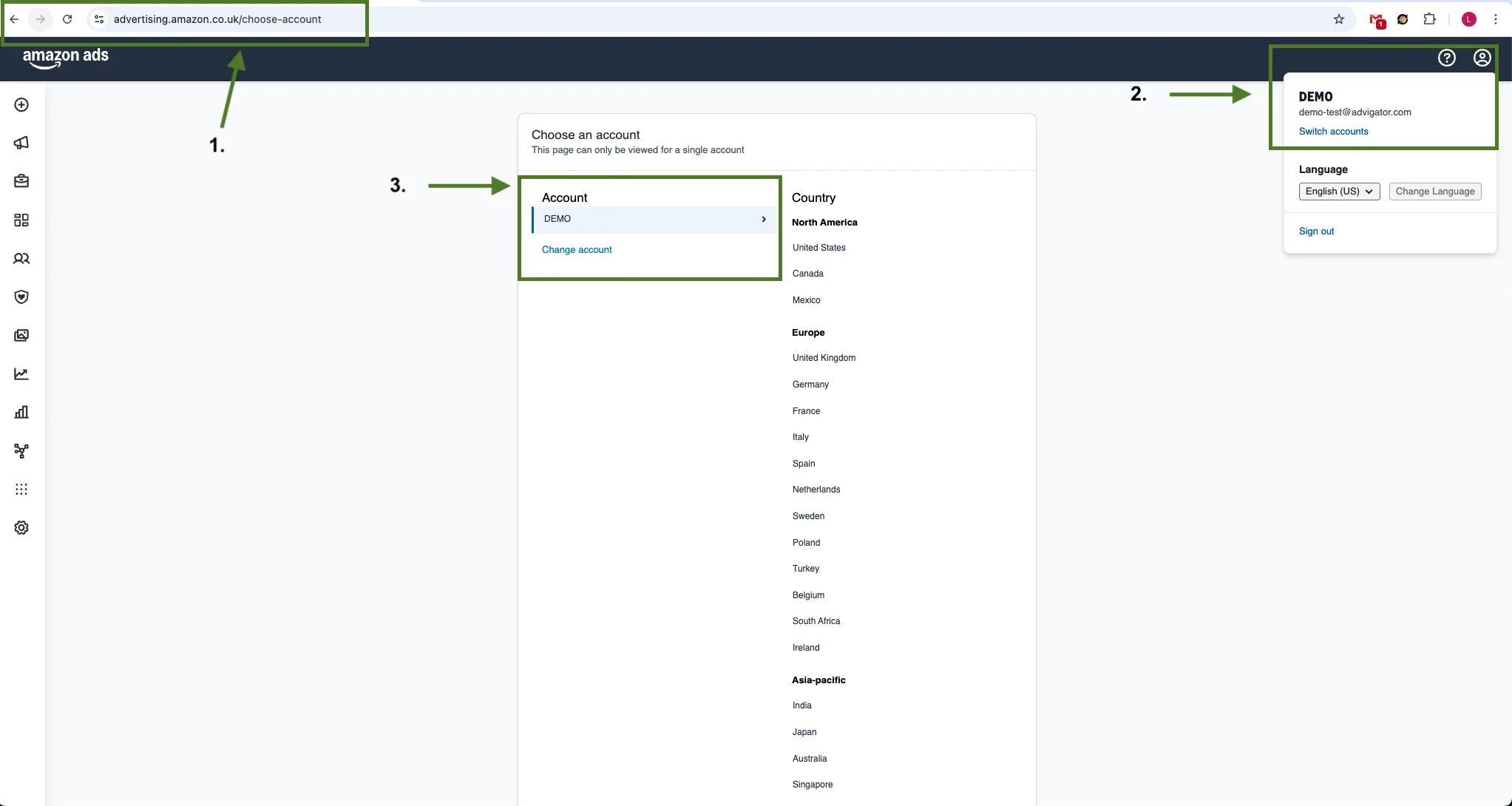
Go to advertising.amazon.com/choose-account and make sure you see the list of all accounts associated with the same email address that you have access to.
2. Verify the email used to connect Advigator
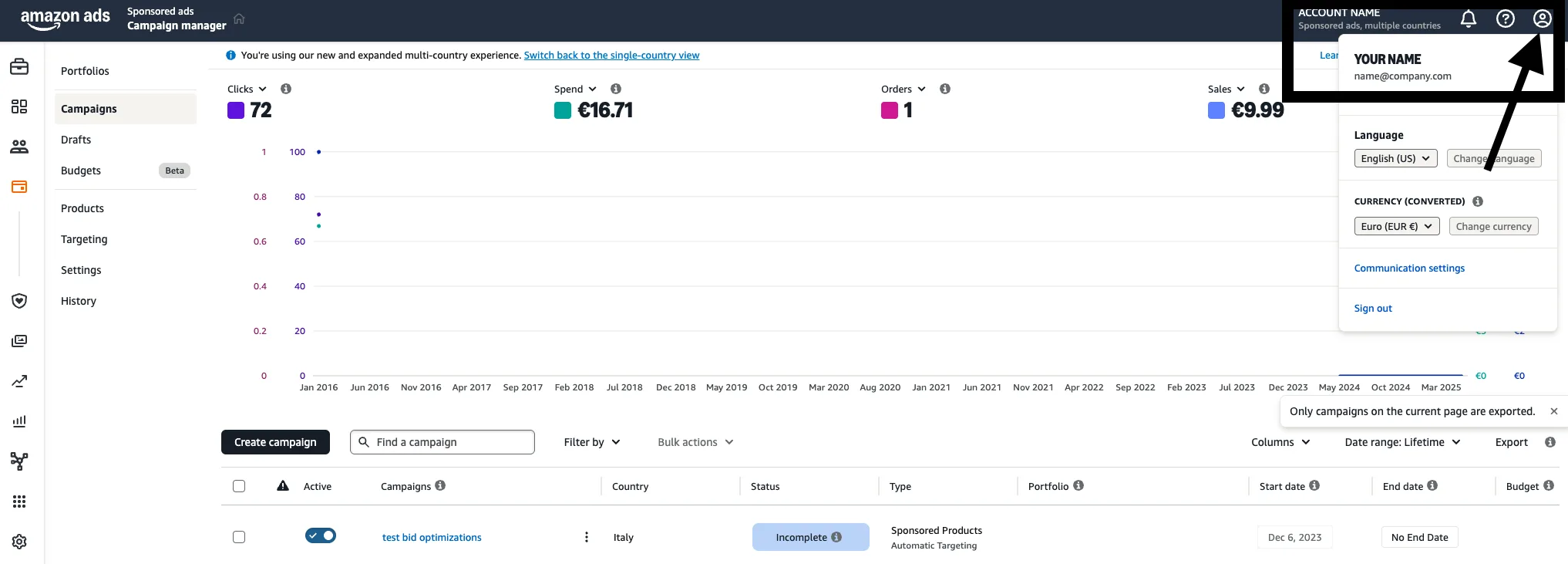
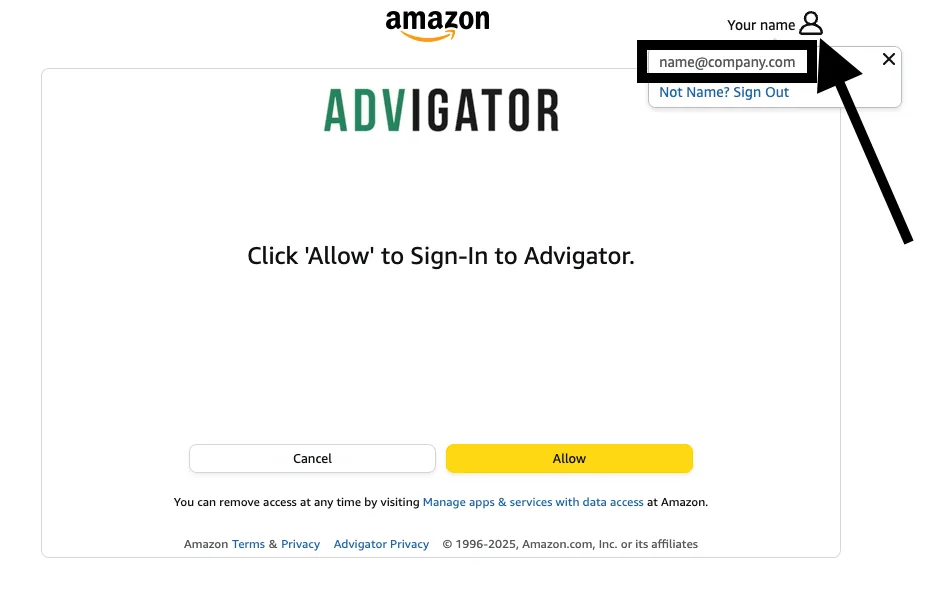
Check the email address you’re using when connecting the Advigator application. You can find it by clicking on your profile icon in the top-right corner.
3. Review account access settings
Go to Amazon Ads Console > Administration > Account access & settings. Confirm that your email address appears and that the list of countries is correct.
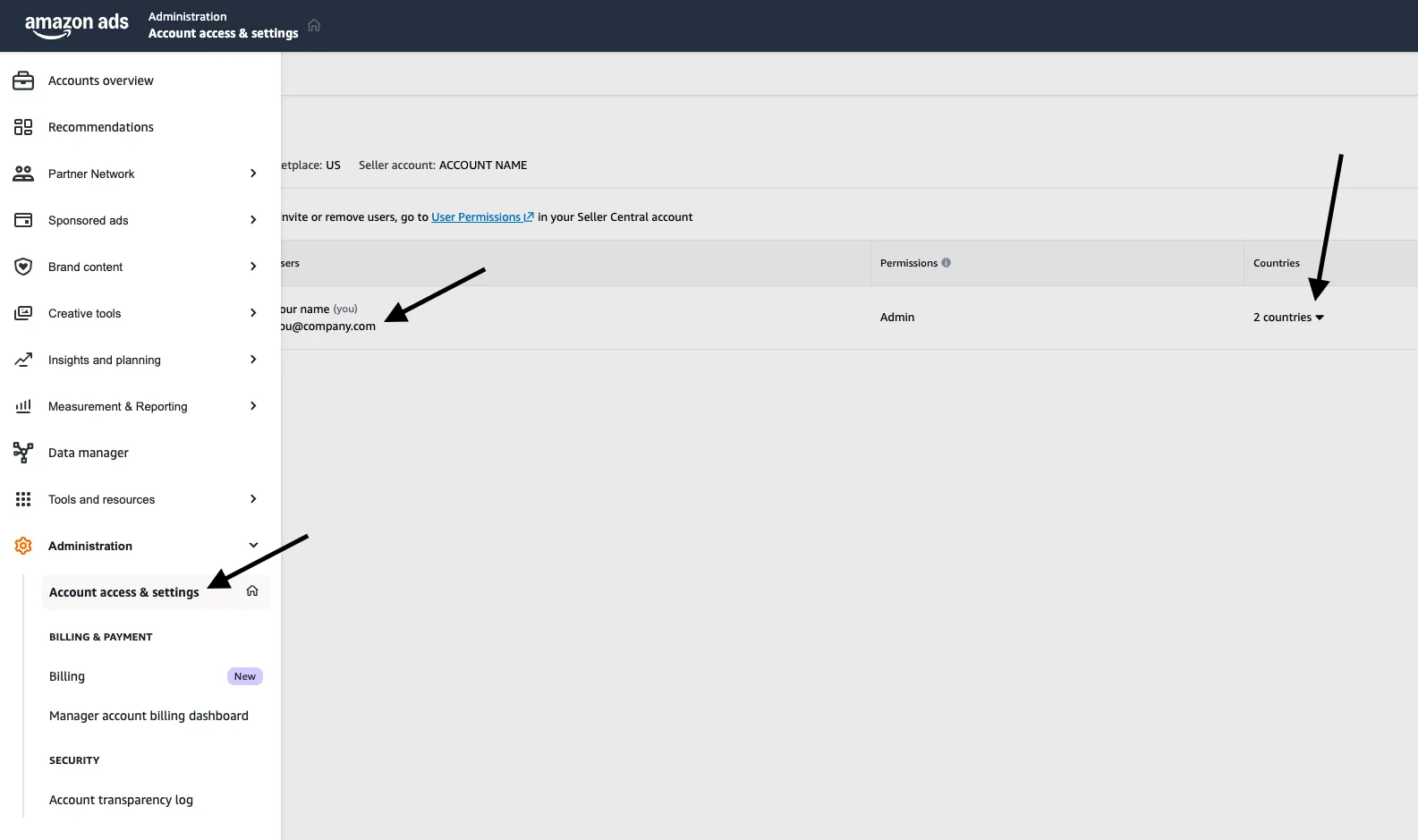
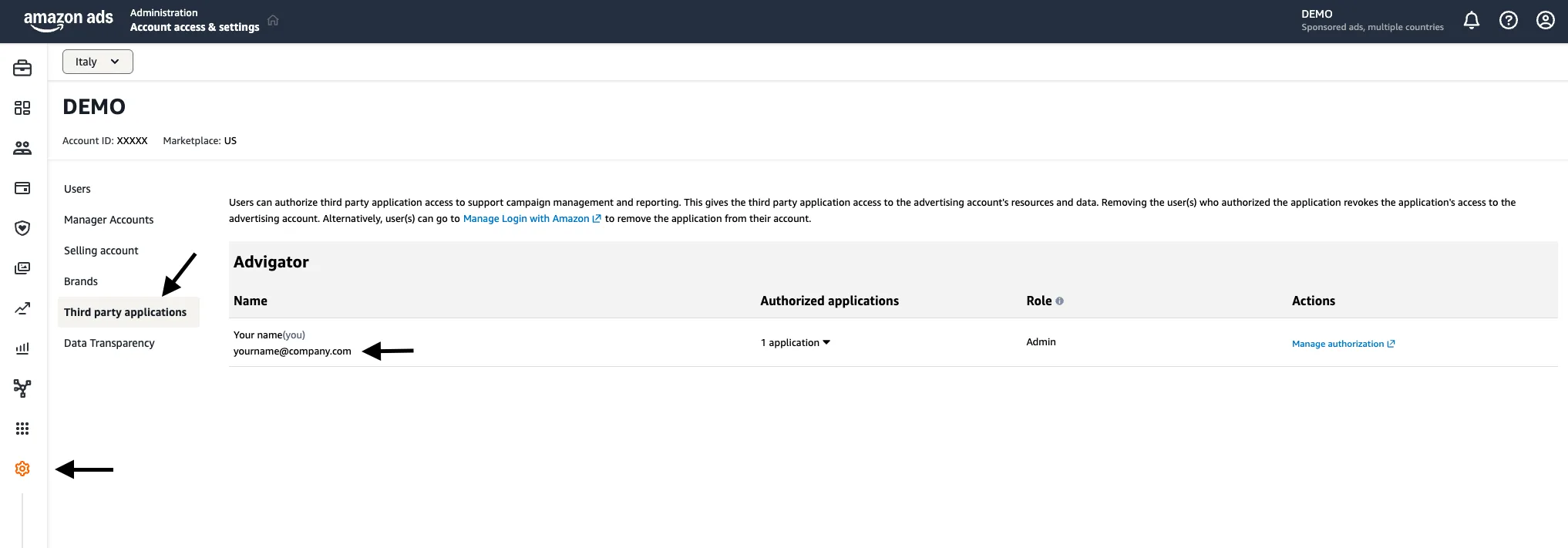
4. Authorized third-party application
Check that your email address is authorized with our application.
5. Multiple regions
Ensure the email address you connected is only used in one region (amazon-eu@xyz.com for the EU and amazon-na@xyz.com for NA). In this case, you need to create and/or invite a secondary user and give them View/Edit permissions for Campaign Management only for the missing region.
6. Contact our support
If you weren’t able to resolve the issue, please contact our support and include the following:
- The email address you use in the Amazon Ads console.
- Account name and marketplace.
- Screenshot #1.
- Screenshot #2.
- Screenshot #3.
- Screenshot #4.
We’ll open a support ticket with our Amazon Ads team.